
At Pulse 2009 IV Blankenship gave a short session on Integration Impact with ITM via Web Services. I recorded the video and have posted it to youtube.com.
Part 1 - http://www.youtube.com/watch?v=re8CjQ0Irx4
Part 2 - http://www.youtube.com/watch?v=tToFieRylfQ
Contact tony.delgross@gulfsoft.com or iv.blankenship@gulfsoft.com for more information.
Monday, February 16, 2009

Thursday, February 5, 2009
ITM 6.2.1: What is new in Agent Deployment
If you have been using the "tacmd createnode" to deploy agents in the past, you are in for a pleasant surprise in ITM 6.2.1! IBM added few welcome changes to the above command. These new features not only makes the deployment easier, they enable you keep track of agent deployment like you'd do in sophisticated products like ITCM. This article discusses the new features in detail.
Background Execution
If you invoke the tacmd createnode with the usual parameters (remote system name, user and password), it will NOT hang until the agent deployed as it was before. Instead, it will give you a transaction ID and return back control. Kinda similar to "winstsp" command in ITCM. Are you already seeing some ITCM like behavior? Wait there is more! To get the status of the deployment, use the new tacmd subcommand, "tacmd getdeploystatus". It lists all the distributions you have done so far and their status. A sample output is shown below.
Transaction ID : 12292212812729130001281138021
Command : INSTALL
Status : SUCCESS
Retries : 0
TEMS Name : VSITM621WIN
Target Hostname: 192.168.162.169
Platform : WINNT
Product : NT
Version : 062100000
Error Message : KDY2065I: The node creation operation was a success.
Batch Deployment
ITM 6.2.1 "tacmd createnode" supports batch deployment of agents. For example, you can create a deployment group named AppServers, add all appservers to that group and send deployment to them using single tacmd createnode command. There are new additions to subcommands viz. tacmd creategroup, tacmd addgroupmember and tacmd deletegroupmember to manage groups and its members.
Workspaces
To keep track of all your agent deployments, ITM 6.2.1 adds new workspaces to TEPS at the Enterprise level. The workspace provides a summary of all your deployments including number of agents Succeeded, Failed, Progress, etc, similar to MDist2 Console. There is also another workspace called "Deployment Status Summary By Transaction" providing status of deployments by Transaction ID. A sample Workspace view is shown below.

Remote Execution
One other subtle difference documented is that you can execute "tacmd createnode" from anywhere and you don't have to be logged on to TEMS server.
These feature additions are steps in the right direction for managing agent deployment and I hope you will find the features helpful.
Monday, January 26, 2009
Adding disk space to a Linux VM in VMWare - Take 2
A little while back Frank posted a blog about increasing the size of a logical volume in Linux (http://blog.gulfsoft.com/2008/11/adding-disk-space-to-linux-vm-in-vmware.html). I tried this out and it worked great.
I also had to do something similar in Windows, which turns out to be much simpler by using the VMWare Converter. Unfortunately this is not supported for Linux. The one thing that got me thinking though is that Windows can increase from a single drive and not have to use a separate drive. So why could I not do this in Linux?
The reason I needed to do this was for the new version of TPM (7.1). I originally had my VM set up with 20GB allocated, but the new version now requires approximately 50Gb to install, so the steps below are what I used to increase the LVM for my TPM install.
Here is my setup:
VM Ware: VMWare Server 2.0.0
Host OS: Windows 2003 SE SP2 x64
Guest OS: Red Hat ES4 U5
Increase VM Disk Size
Use the VMWare tool vmware-vdiskmanager.exe to increase the size
C:\Program Files (x86)\VMware\VMware Server>vmware-vdiskmanager.exe -x 50GB "f:\
VM_Images\VM TPM7.1 RH\rhes4srv01\Red Hat Enterprise Linux 4.vmdk"
Disk expansion completed successfully.
Use fdisk to create new partition
Even though the previous step reports that more disk was added, it still is not recognized by the OS.
Current file system:
df
Filesystem 1K-blocks Used Available Use% Mounted on
/dev/mapper/VolGroup00-LogVol00 19448516 1964128 16496436 11% /
/dev/sda1 101086 13232 82635 14% /boot
none 257208 0 257208 0% /dev/shm
1. Enter the FDISK utility
fdisk /dev/sda
2. Print the existing partition table
Command (m for help): p
Disk /dev/sda: 53.6 GB, 53687091200 bytes
255 heads, 63 sectors/track, 6527 cylinders
Units = cylinders of 16065 * 512 = 8225280 bytes
Device Boot Start End Blocks Id System
/dev/sda1 * 1 13 104391 83 Linux
/dev/sda2 14 2610 20860402+ 8e Linux LVM
3. Create new partition. This will be a Primary partition and is the 3rd partition. For the cylimder values, press enter to accept the defaults
Command (m for help): n
Command action
e extended
p primary partition (1-4)
p
Partition number (1-4): 3
First cylinder (2611-6527, default 2611):
Using default value 2611
Last cylinder or +size or +sizeM or +sizeK (2611-6527, default 6527):
Using default value 6527
4. Set the Partition type to Linux LVM (hex 8e)
Command (m for help): t
Partition number (1-4): 3
Hex code (type L to list codes): 8e
Changed system type of partition 3 to 8e (Linux LVM)
5. Print the Partition table again to see the new partition
Command (m for help): p
Disk /dev/sda: 53.6 GB, 53687091200 bytes
255 heads, 63 sectors/track, 6527 cylinders
Units = cylinders of 16065 * 512 = 8225280 bytes
Device Boot Start End Blocks Id System
/dev/sda1 * 1 13 104391 83 Linux
/dev/sda2 14 2610 20860402+ 8e Linux LVM
/dev/sda3 2611 6527 31463302+ 8e Linux LVM
6. Write the new partition information
Command (m for help): w
The partition table has been altered!
Calling ioctl() to re-read partition table.
WARNING: Re-reading the partition table failed with error 16: Device or resource busy.
The kernel still uses the old table.
The new table will be used at the next reboot.
Syncing disks.
7. Reboot
Create the Logical Volume
Now that the partition is created, the physical and logical volume needs to be created
1. Create the Physical Volume - use the new partition information from the df command. In this case the new partition is /dev/sda3
pvcreate /dev/sda3
Physical volume "/dev/sda3" successfully created
2. Add the new Physical Volume to the Logical Volume
vgextend VolGroup00 /dev/sda3
Volume group "VolGroup00" successfully extended
3. Extend the Logical Volume.
vgdisplay
--- Volume group ---
VG Name VolGroup00
System ID
Format lvm2
Metadata Areas 2
Metadata Sequence No 4
VG Access read/write
VG Status resizable
MAX LV 0
Cur LV 2
Open LV 2
Max PV 0
Cur PV 2
Act PV 2
VG Size 49.88 GB
PE Size 32.00 MB
Total PE 1596
Alloc PE / Size 635 / 19.84 GB
Free PE / Size 961 / 30.03 GB
VG UUID bzOq45-o5yO-ruYY-Ffx1-DxCx-2e2j-ardXtu
lvextend -L +30.03G /dev/VolGroup00/LogVol00
Rounding up size to full physical extent 30.03 GB
Extending logical volume LogVol00 to 48.88 GB
Logical volume LogVol00 successfully resized
Note: The lvextend can either use the value of the Free PE from the vgdisplay command or the command lvextend -l +100%FREE /dev/VolGroup00/LogVol00. I found out about the %FREE after, so I did not test this.
4. Extend the filesystem
The resize2fs does not work for this situation. The command ext2online will allow for the disk to be resized while disk is still mounted.
ext2online /dev/VolGroup00/LogVol00
5. View the new file system
df
Filesystem 1K-blocks Used Available Use% Mounted on
/dev/mapper/VolGroup00-LogVol00 50444996 1972848 45911716 5% /
/dev/sda1 101086 13232 82635 14% /boot
none 1825828 0 1825828 0% /dev/shm
And there is a system with a nice large drive. Hope this helps you.
I also had to do something similar in Windows, which turns out to be much simpler by using the VMWare Converter. Unfortunately this is not supported for Linux. The one thing that got me thinking though is that Windows can increase from a single drive and not have to use a separate drive. So why could I not do this in Linux?
The reason I needed to do this was for the new version of TPM (7.1). I originally had my VM set up with 20GB allocated, but the new version now requires approximately 50Gb to install, so the steps below are what I used to increase the LVM for my TPM install.
Here is my setup:
VM Ware: VMWare Server 2.0.0
Host OS: Windows 2003 SE SP2 x64
Guest OS: Red Hat ES4 U5
Increase VM Disk Size
Use the VMWare tool vmware-vdiskmanager.exe to increase the size
C:\Program Files (x86)\VMware\VMware Server>vmware-vdiskmanager.exe -x 50GB "f:\
VM_Images\VM TPM7.1 RH\rhes4srv01\Red Hat Enterprise Linux 4.vmdk"
Disk expansion completed successfully.
Use fdisk to create new partition
Even though the previous step reports that more disk was added, it still is not recognized by the OS.
Current file system:
df
Filesystem 1K-blocks Used Available Use% Mounted on
/dev/mapper/VolGroup00-LogVol00 19448516 1964128 16496436 11% /
/dev/sda1 101086 13232 82635 14% /boot
none 257208 0 257208 0% /dev/shm
1. Enter the FDISK utility
fdisk /dev/sda
2. Print the existing partition table
Command (m for help): p
Disk /dev/sda: 53.6 GB, 53687091200 bytes
255 heads, 63 sectors/track, 6527 cylinders
Units = cylinders of 16065 * 512 = 8225280 bytes
Device Boot Start End Blocks Id System
/dev/sda1 * 1 13 104391 83 Linux
/dev/sda2 14 2610 20860402+ 8e Linux LVM
3. Create new partition. This will be a Primary partition and is the 3rd partition. For the cylimder values, press enter to accept the defaults
Command (m for help): n
Command action
e extended
p primary partition (1-4)
p
Partition number (1-4): 3
First cylinder (2611-6527, default 2611):
Using default value 2611
Last cylinder or +size or +sizeM or +sizeK (2611-6527, default 6527):
Using default value 6527
4. Set the Partition type to Linux LVM (hex 8e)
Command (m for help): t
Partition number (1-4): 3
Hex code (type L to list codes): 8e
Changed system type of partition 3 to 8e (Linux LVM)
5. Print the Partition table again to see the new partition
Command (m for help): p
Disk /dev/sda: 53.6 GB, 53687091200 bytes
255 heads, 63 sectors/track, 6527 cylinders
Units = cylinders of 16065 * 512 = 8225280 bytes
Device Boot Start End Blocks Id System
/dev/sda1 * 1 13 104391 83 Linux
/dev/sda2 14 2610 20860402+ 8e Linux LVM
/dev/sda3 2611 6527 31463302+ 8e Linux LVM
6. Write the new partition information
Command (m for help): w
The partition table has been altered!
Calling ioctl() to re-read partition table.
WARNING: Re-reading the partition table failed with error 16: Device or resource busy.
The kernel still uses the old table.
The new table will be used at the next reboot.
Syncing disks.
7. Reboot
Create the Logical Volume
Now that the partition is created, the physical and logical volume needs to be created
1. Create the Physical Volume - use the new partition information from the df command. In this case the new partition is /dev/sda3
pvcreate /dev/sda3
Physical volume "/dev/sda3" successfully created
2. Add the new Physical Volume to the Logical Volume
vgextend VolGroup00 /dev/sda3
Volume group "VolGroup00" successfully extended
3. Extend the Logical Volume.
vgdisplay
--- Volume group ---
VG Name VolGroup00
System ID
Format lvm2
Metadata Areas 2
Metadata Sequence No 4
VG Access read/write
VG Status resizable
MAX LV 0
Cur LV 2
Open LV 2
Max PV 0
Cur PV 2
Act PV 2
VG Size 49.88 GB
PE Size 32.00 MB
Total PE 1596
Alloc PE / Size 635 / 19.84 GB
Free PE / Size 961 / 30.03 GB
VG UUID bzOq45-o5yO-ruYY-Ffx1-DxCx-2e2j-ardXtu
lvextend -L +30.03G /dev/VolGroup00/LogVol00
Rounding up size to full physical extent 30.03 GB
Extending logical volume LogVol00 to 48.88 GB
Logical volume LogVol00 successfully resized
Note: The lvextend can either use the value of the Free PE from the vgdisplay command or the command lvextend -l +100%FREE /dev/VolGroup00/LogVol00. I found out about the %FREE after, so I did not test this.
4. Extend the filesystem
The resize2fs does not work for this situation. The command ext2online will allow for the disk to be resized while disk is still mounted.
ext2online /dev/VolGroup00/LogVol00
5. View the new file system
df
Filesystem 1K-blocks Used Available Use% Mounted on
/dev/mapper/VolGroup00-LogVol00 50444996 1972848 45911716 5% /
/dev/sda1 101086 13232 82635 14% /boot
none 1825828 0 1825828 0% /dev/shm
And there is a system with a nice large drive. Hope this helps you.
Friday, January 16, 2009
TPM 7.1 Notes
After checking out TPM 7.1 for a little while, I thought I would post some of my observations on this new version.
Downloads
Get ready for another big download. To download the media for Windows, it was approximately 15GB. I also downloaded the Linux media, but really they do share a bunch between the various OS installs, so this was only another 5GB. The IBM document for downloading is located at http://www-01.ibm.com/support/docview.wss?uid=swg24020532
Installation
For now, I have only done the Windows based install as I was more interested in the actual product usage rather than fighting with an install at this time. Little did I know that the install would be a bit of a fight.
I decided to go with the default install for now just to get it up and running. So I brought up my trusty Windows 2003 SP2 VM image and started to prep it for the installation. Since the disk requirements were more than I allocated to my C drive, I created a new drive and allocated 50GB for an E drive. I then extracted the images to the E drive and started installing. After a few pages of entering information, I started to get failures. After checking around and asking IBM support, it turns out the default install is only supported on one volume (this is in the documentation, but not really clear as I was installing everything on one “volume”, the E drive). So I had to increase the C drive space (thanks to VMware Converter) and start again. After that the install went fine. It took about 5 hours to complete.
Start Up
Starting TPM is not much different than it was in the 5.x versions. There is a nice little icon to start and stop TPM. The only issue I had is that the TDS (Tivoli Directory Server) does not start automatically. This means that you cannot log in! You have to manually start the TDS service. I am sure that this has something to do with startup prereqs, but have not investigated right now.
New User Interface
Because I have used TSRM (Tivoli Service Request Manager), the interface was not that foreign to me, but still way different than the 5.x interface. I find that it is not as fluid as the old interface but is way more powerful and flexible. With a proper layout, I am sure that it can be way easier to navigate than 5.x.
One thing that does bug me is that Internet Explorer is the only supported browser. I have been using Firefox and everything seems to work fine except for the reports (could be just my setup)
The new interface has tabs which are called Start Center Templates. These start Centers can be setup to provide shortcuts into the application that are specific to the function of the user. So if you have someone that is an inventory specialist, you can create a layout that will provide quick access to everything they need to perform their job rather than displaying what they do not need like workflows and security. A user/group can also be assigned multiple Start Center templates. This is useful for using existing templates created for various job functions and providing them to a user whose role spreads multiple areas.
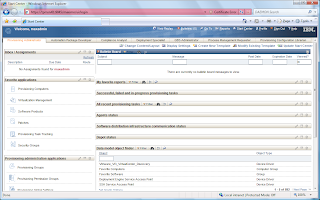 Start Center - Default Provisioning Administrator
Discovery
There is something new called a Discovery Wizard. These wizards can perform multiple functions for discovery rather than the one step discovery (RXA discovery or inventory). For example, one wizard is called Computer Discovery, Common Agent Installation and Inventory Discovery. This discovery does exactly what it says. The first step will be to discover the computer using the RXA discovery, then once that is completed, install the TCA on the discovered systems, and then do an inventory scan of the systems. Worked pretty nice. The only issue I had is that the default setting for the TCA is to enable the SDI-SAP. This means that in order to perform the inventory scan, the SDI environment needs to be configured first. Either that, or change the global variable TCA.Create.EO.SAP to false.
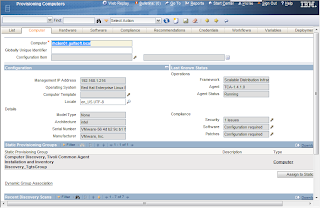
Computer General Information
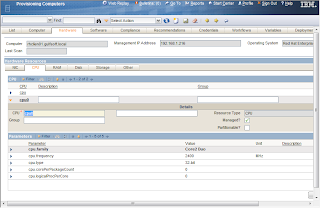
Computer Hardware Information (CPU)
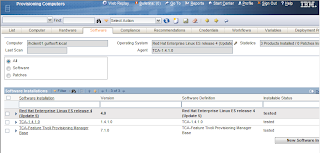
Computer Software Information
Reporting
Reporting for 7.1 is WAY different than 5.x. TPM now uses BIRT to provide reporting instead of the DB2 Alphablox. Now there is good and bad with this new reporting method. The bad thing is that it is quite a bit more complex than the 5.x reports. The 5.x was pretty simple to use and create a report. The good thing is that BIRT is quite a bit more flexible and is being standardized across the various Tivoli products (Tivoli Common Reporting is BIRT with WebSphere) so the experience from one product can be shared across all.
Another note is that reports are no longer used for the dynamic groups. Dynamic groups use something called a query (I think I will follow-up on this in a future blog).
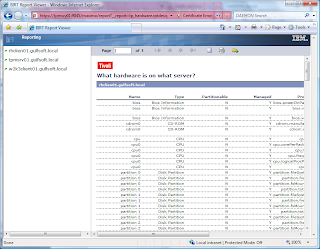
Sample Report – What Hardware is installed on what server
General Comments
The new version of TPM is looking very promising. The interface is very flexible/customizable, which is something that the old interface was not. The old interface did seem to flow a bit better by allowing the opening of new windows and tabs by right clicking on an object. This is not something that can be done in the new interface. The old one was specifically designed for the job it had to do, but really could not do much more, where the new interface will allow for the ability to expand beyond just TPM functions. This new interface is the same one shared by TSRM, TAMIT, TADDM and many other Maximo products.
Now we just need to see what will happen with the new version of TPMfSW (possibly named TDM or Tivoli Desktop Manager) to see what the full direction will be. One other thing that I know is on the list is the new TCA. This was something that I was hoping would be squeaked in (it was not promised for this release) but hopefully the 7.1.1 release will.
If you have any comments or questions, please fire them off and I will see what I can do to answer them.
Downloads
Get ready for another big download. To download the media for Windows, it was approximately 15GB. I also downloaded the Linux media, but really they do share a bunch between the various OS installs, so this was only another 5GB. The IBM document for downloading is located at http://www-01.ibm.com/support/docview.wss?uid=swg24020532
Installation
For now, I have only done the Windows based install as I was more interested in the actual product usage rather than fighting with an install at this time. Little did I know that the install would be a bit of a fight.
I decided to go with the default install for now just to get it up and running. So I brought up my trusty Windows 2003 SP2 VM image and started to prep it for the installation. Since the disk requirements were more than I allocated to my C drive, I created a new drive and allocated 50GB for an E drive. I then extracted the images to the E drive and started installing. After a few pages of entering information, I started to get failures. After checking around and asking IBM support, it turns out the default install is only supported on one volume (this is in the documentation, but not really clear as I was installing everything on one “volume”, the E drive). So I had to increase the C drive space (thanks to VMware Converter) and start again. After that the install went fine. It took about 5 hours to complete.
Start Up
Starting TPM is not much different than it was in the 5.x versions. There is a nice little icon to start and stop TPM. The only issue I had is that the TDS (Tivoli Directory Server) does not start automatically. This means that you cannot log in! You have to manually start the TDS service. I am sure that this has something to do with startup prereqs, but have not investigated right now.
New User Interface
Because I have used TSRM (Tivoli Service Request Manager), the interface was not that foreign to me, but still way different than the 5.x interface. I find that it is not as fluid as the old interface but is way more powerful and flexible. With a proper layout, I am sure that it can be way easier to navigate than 5.x.
One thing that does bug me is that Internet Explorer is the only supported browser. I have been using Firefox and everything seems to work fine except for the reports (could be just my setup)
The new interface has tabs which are called Start Center Templates. These start Centers can be setup to provide shortcuts into the application that are specific to the function of the user. So if you have someone that is an inventory specialist, you can create a layout that will provide quick access to everything they need to perform their job rather than displaying what they do not need like workflows and security. A user/group can also be assigned multiple Start Center templates. This is useful for using existing templates created for various job functions and providing them to a user whose role spreads multiple areas.
 Start Center - Default Provisioning Administrator
Discovery
There is something new called a Discovery Wizard. These wizards can perform multiple functions for discovery rather than the one step discovery (RXA discovery or inventory). For example, one wizard is called Computer Discovery, Common Agent Installation and Inventory Discovery. This discovery does exactly what it says. The first step will be to discover the computer using the RXA discovery, then once that is completed, install the TCA on the discovered systems, and then do an inventory scan of the systems. Worked pretty nice. The only issue I had is that the default setting for the TCA is to enable the SDI-SAP. This means that in order to perform the inventory scan, the SDI environment needs to be configured first. Either that, or change the global variable TCA.Create.EO.SAP to false.


Reporting
Reporting for 7.1 is WAY different than 5.x. TPM now uses BIRT to provide reporting instead of the DB2 Alphablox. Now there is good and bad with this new reporting method. The bad thing is that it is quite a bit more complex than the 5.x reports. The 5.x was pretty simple to use and create a report. The good thing is that BIRT is quite a bit more flexible and is being standardized across the various Tivoli products (Tivoli Common Reporting is BIRT with WebSphere) so the experience from one product can be shared across all.
Another note is that reports are no longer used for the dynamic groups. Dynamic groups use something called a query (I think I will follow-up on this in a future blog).

General Comments
The new version of TPM is looking very promising. The interface is very flexible/customizable, which is something that the old interface was not. The old interface did seem to flow a bit better by allowing the opening of new windows and tabs by right clicking on an object. This is not something that can be done in the new interface. The old one was specifically designed for the job it had to do, but really could not do much more, where the new interface will allow for the ability to expand beyond just TPM functions. This new interface is the same one shared by TSRM, TAMIT, TADDM and many other Maximo products.
Now we just need to see what will happen with the new version of TPMfSW (possibly named TDM or Tivoli Desktop Manager) to see what the full direction will be. One other thing that I know is on the list is the new TCA. This was something that I was hoping would be squeaked in (it was not promised for this release) but hopefully the 7.1.1 release will.
If you have any comments or questions, please fire them off and I will see what I can do to answer them.
Wednesday, January 14, 2009
Migrating endpoints to a new TMR
This question keeps coming up in the TME10 list so I thought I would go through a couple methods that I have used. You can determine which one you want to use for your environment.
Note: This is mainly looking from a Windows endpoint perspective, but easy enough to apply to any OS.
Using wadminep
By making use of the wadminep command, you can issue a sequence of commands to delete the lcf.dat file and restart the endpoint with new configuration settings. The two arguments to use are remove_file and reexec_lcfd. These can be wrapped in a script (sh, perl) and executed against one or many targets. This method is easiest to implement, but is probably slower as it processes on endpoint at a time.
The basic steps are
wadminep remove_file lcf.dat
wadminep reexec_lcfd -g "<gateway_name>+<gateway_port>"
You can either hard code the gateway name and port, or make these variables.
Using a software package
It is possible to create a software package that can be distributed to the targets to perform the same basic functions of the wadminep commands. The good thing with the software distribution method is that you can hit more targets at the same time and also use the MDIST2 features to help with the distribution (result info, timeouts, bandwidth, etc).
The only issue with using a software package is that you cannot just run a script that stops and starts the endpoint. If you run a script that stops the endpoint, it will also stop the script from executing and it will result in either an interrupted or failed state. To work around this issue, the package will need to execute a script that will spawn a new script and release. Since the spawned script will execute right away, a delay is needed, which is where the sleep command comes in handy.
This package will consist of 2 batch files and the sleep command. The sleep command may need to be included as this is not available on all Windows systems.
Batch File 1 - start_mig_ep.bat
This script will remove the old dat file from the endpoint and then spawn the restart_ep.bat script
=====================================================================
@echo off
call "%SYSTEMROOT%\Tivoli\lcf\1\lcf_env.cmd"
REM Create backup directory in case the endpoitn needs to be moved back to the old TMR
if not exist "%LCF_DATDIR%\mig_bak" mkdir "%LCF_DATDIR%\mig_bak"
REM move the LCF files
if exist "%LCF_DATDIR%\lcf.dat" move /y "%LCF_DATDIR%\lcf.dat" "%LCF_DATDIR%\mig_bak\lcf.dat"
if exist "%LCF_DATDIR%\lcfd.log" move /y "%LCF_DATDIR%\lcfd.log" "%LCF_DATDIR%\mig_bak\lcfd.log"
REM Delete the bak/bk files. In some newer versions of endpoint, these files are created
del /f/q "%LCF_DATDIR%\*.bk"
del /f/q "%LCF_DATDIR%\*.bak"
start "Restart EP" "$(target_dir)\restart_ep.bat"
=====================================================================
Batch File 2 - restart_ep.bat
This file will use sleep to give some time for the endpoint to report that it is completed and then continue with the endpoint restart. When the endpoint is restarted, the gateway parameter will be passed with a gateway from the new TMR.
=====================================================================
@echo off
echo setting sleep for 30 seconds > "$(target_dir)\restart_ep.log"
call "$(target_dir)\sleep" 30 >> "$(target_dir)\restart_ep.log"
REM Stop the lcfd
call net stop lcfd >> "$(target_dir)\restart_ep.log"
REM Start the lcfd
call net start lcfd "/g$(gw_name)+9494" "/d3" >> "$(target_dir)\restart_ep.log"
=====================================================================
Once the scripts are created, the software package can be created to send the files to the target and then execute the start_mig_ep.bat script. Some notes on the software package that will be required:
1. Variables will be required for the scripts
- target_dir: used as the destination for where the files will be sent and the script executed from. I have set this to be a subdirectory of the Tivoli endpoint install location. This is done using the environment variable LCF_DATDIR (case sensitive if on UNIX). The value I used is $(LCF_DATDIR)\..\..\..\temp (if installed in C:\Tivoli\lcf\dat\1, this would be C:\Tivoli\temp)
- gw_name: used to define the gateway to be used in the distribution. This will allow for different distributions to be sent to different gateways. This could be the ip address, short name or FQDN.
2. Use of the substitute variables. Each of the scripts have the Tivoli variables in them. In order for the scripts to be updated, the Substitute Variables checkbox needs to be checked. This is in the advanced file properties for the files.
Migrate_ep SPD file contents
=====================================================================
"TIVOLI Software Package v4.2.3 - SPDF"
package
name = migrate_ep
title = "No title"
version = 1.0
web_view_mode = hidden
undoable = o
committable = o
history_reset = n
save_default_variables = n
creation_time = "2009-01-14 10:00:00"
last_modification_time = "2009-01-14 10:00:00"
default_variables
target_dir = $(LCF_DATDIR)\..\..\..\temp
gw_name = gateway_name
end
log_object_list
location = $(target_dir)
unix_user_id = 0
unix_group_id = 0
unix_attributes = rwx,rx,
end
move_removing_host = y
no_check_source_host = y
lenient_distribution = y
default_operation = install
server_mode = all,force
operation_mode = not_transactional
post_notice = n
before_as_uid = 0
skip_non_zero = n
after_as_uid = 0
no_chk_on_rm = y
versioning_type = swd
package_type = refresh
sharing_control = none
stop_on_failure = y
add_directory
stop_on_failure = y
add = y
replace_if_existing = y
replace_if_newer = n
remove_if_modified = n
location = C:\CID\SRC
name = migrate_ep
translate = n
destination = $(target_dir)
descend_dirs = n
remove_empty_dirs = y
is_shared = n
remove_extraneous = n
substitute_variables = y
unix_owner = root
unix_user_id = 0
unix_group_id = 0
preserve_unix = n
create_dirs = y
remote = n
compute_crc = n
verify_crc = n
delta_compressible = d
temporary = n
is_signature = n
compression_method = deflated
rename_if_locked = y
add_file
replace_if_existing = y
replace_if_newer = n
remove_if_modified = n
name = sleep.exe
translate = n
destination = sleep.exe
remove_empty_dirs = y
is_shared = n
remove_extraneous = n
substitute_variables = y
unix_owner = root
unix_user_id = 0
unix_group_id = 0
preserve_unix = n
create_dirs = y
remote = n
compute_crc = n
verify_crc = n
delta_compressible = d
temporary = n
is_signature = n
compression_method = deflated
rename_if_locked = y
end
add_file
replace_if_existing = y
replace_if_newer = n
remove_if_modified = n
name = restart_ep.bat
translate = n
destination = restart_ep.bat
remove_empty_dirs = y
is_shared = n
remove_extraneous = n
substitute_variables = y
unix_owner = root
unix_user_id = 0
unix_group_id = 0
preserve_unix = n
create_dirs = y
remote = n
compute_crc = n
verify_crc = n
delta_compressible = d
temporary = n
is_signature = n
compression_method = deflated
rename_if_locked = y
end
add_file
replace_if_existing = y
replace_if_newer = n
remove_if_modified = n
name = start_mig_ep.bat
translate = n
destination = start_mig_ep.bat
remove_empty_dirs = y
is_shared = n
remove_extraneous = n
substitute_variables = y
unix_owner = root
unix_user_id = 0
unix_group_id = 0
preserve_unix = n
create_dirs = y
remote = n
compute_crc = n
verify_crc = n
delta_compressible = d
temporary = n
is_signature = n
compression_method = deflated
rename_if_locked = y
end
end
execute_user_program
caption = "Execute migrate batch file"
transactional = n
during_install
path = $(target_dir)\start_mig_ep.bat
inhibit_parsing = n
timeout = 300
unix_user_id = 0
unix_group_id = 0
user_input_required = n
output_file = $(target_dir)\start_mig_ep_out.log
error_file = $(target_dir)\start_mig_ep_err.log
output_file_append = n
error_file_append = n
reporting_stdout_on_server = n
reporting_stderr_on_server = n
max_stdout_size = 10000
max_stderr_size = 10000
bootable = n
retry = 1
exit_codes
success = 0,0
failure = 1,65535
end
end
end
end
=====================================================================
Note: This is mainly looking from a Windows endpoint perspective, but easy enough to apply to any OS.
Using wadminep
By making use of the wadminep command, you can issue a sequence of commands to delete the lcf.dat file and restart the endpoint with new configuration settings. The two arguments to use are remove_file and reexec_lcfd. These can be wrapped in a script (sh, perl) and executed against one or many targets. This method is easiest to implement, but is probably slower as it processes on endpoint at a time.
The basic steps are
wadminep
wadminep
You can either hard code the gateway name and port, or make these variables.
Using a software package
It is possible to create a software package that can be distributed to the targets to perform the same basic functions of the wadminep commands. The good thing with the software distribution method is that you can hit more targets at the same time and also use the MDIST2 features to help with the distribution (result info, timeouts, bandwidth, etc).
The only issue with using a software package is that you cannot just run a script that stops and starts the endpoint. If you run a script that stops the endpoint, it will also stop the script from executing and it will result in either an interrupted or failed state. To work around this issue, the package will need to execute a script that will spawn a new script and release. Since the spawned script will execute right away, a delay is needed, which is where the sleep command comes in handy.
This package will consist of 2 batch files and the sleep command. The sleep command may need to be included as this is not available on all Windows systems.
Batch File 1 - start_mig_ep.bat
This script will remove the old dat file from the endpoint and then spawn the restart_ep.bat script
=====================================================================
@echo off
call "%SYSTEMROOT%\Tivoli\lcf\1\lcf_env.cmd"
REM Create backup directory in case the endpoitn needs to be moved back to the old TMR
if not exist "%LCF_DATDIR%\mig_bak" mkdir "%LCF_DATDIR%\mig_bak"
REM move the LCF files
if exist "%LCF_DATDIR%\lcf.dat" move /y "%LCF_DATDIR%\lcf.dat" "%LCF_DATDIR%\mig_bak\lcf.dat"
if exist "%LCF_DATDIR%\lcfd.log" move /y "%LCF_DATDIR%\lcfd.log" "%LCF_DATDIR%\mig_bak\lcfd.log"
REM Delete the bak/bk files. In some newer versions of endpoint, these files are created
del /f/q "%LCF_DATDIR%\*.bk"
del /f/q "%LCF_DATDIR%\*.bak"
start "Restart EP" "$(target_dir)\restart_ep.bat"
=====================================================================
Batch File 2 - restart_ep.bat
This file will use sleep to give some time for the endpoint to report that it is completed and then continue with the endpoint restart. When the endpoint is restarted, the gateway parameter will be passed with a gateway from the new TMR.
=====================================================================
@echo off
echo setting sleep for 30 seconds > "$(target_dir)\restart_ep.log"
call "$(target_dir)\sleep" 30 >> "$(target_dir)\restart_ep.log"
REM Stop the lcfd
call net stop lcfd >> "$(target_dir)\restart_ep.log"
REM Start the lcfd
call net start lcfd "/g$(gw_name)+9494" "/d3" >> "$(target_dir)\restart_ep.log"
=====================================================================
Once the scripts are created, the software package can be created to send the files to the target and then execute the start_mig_ep.bat script. Some notes on the software package that will be required:
1. Variables will be required for the scripts
- target_dir: used as the destination for where the files will be sent and the script executed from. I have set this to be a subdirectory of the Tivoli endpoint install location. This is done using the environment variable LCF_DATDIR (case sensitive if on UNIX). The value I used is $(LCF_DATDIR)\..\..\..\temp (if installed in C:\Tivoli\lcf\dat\1, this would be C:\Tivoli\temp)
- gw_name: used to define the gateway to be used in the distribution. This will allow for different distributions to be sent to different gateways. This could be the ip address, short name or FQDN.
2. Use of the substitute variables. Each of the scripts have the Tivoli variables in them. In order for the scripts to be updated, the Substitute Variables checkbox needs to be checked. This is in the advanced file properties for the files.
Migrate_ep SPD file contents
=====================================================================
"TIVOLI Software Package v4.2.3 - SPDF"
package
name = migrate_ep
title = "No title"
version = 1.0
web_view_mode = hidden
undoable = o
committable = o
history_reset = n
save_default_variables = n
creation_time = "2009-01-14 10:00:00"
last_modification_time = "2009-01-14 10:00:00"
default_variables
target_dir = $(LCF_DATDIR)\..\..\..\temp
gw_name = gateway_name
end
log_object_list
location = $(target_dir)
unix_user_id = 0
unix_group_id = 0
unix_attributes = rwx,rx,
end
move_removing_host = y
no_check_source_host = y
lenient_distribution = y
default_operation = install
server_mode = all,force
operation_mode = not_transactional
post_notice = n
before_as_uid = 0
skip_non_zero = n
after_as_uid = 0
no_chk_on_rm = y
versioning_type = swd
package_type = refresh
sharing_control = none
stop_on_failure = y
add_directory
stop_on_failure = y
add = y
replace_if_existing = y
replace_if_newer = n
remove_if_modified = n
location = C:\CID\SRC
name = migrate_ep
translate = n
destination = $(target_dir)
descend_dirs = n
remove_empty_dirs = y
is_shared = n
remove_extraneous = n
substitute_variables = y
unix_owner = root
unix_user_id = 0
unix_group_id = 0
preserve_unix = n
create_dirs = y
remote = n
compute_crc = n
verify_crc = n
delta_compressible = d
temporary = n
is_signature = n
compression_method = deflated
rename_if_locked = y
add_file
replace_if_existing = y
replace_if_newer = n
remove_if_modified = n
name = sleep.exe
translate = n
destination = sleep.exe
remove_empty_dirs = y
is_shared = n
remove_extraneous = n
substitute_variables = y
unix_owner = root
unix_user_id = 0
unix_group_id = 0
preserve_unix = n
create_dirs = y
remote = n
compute_crc = n
verify_crc = n
delta_compressible = d
temporary = n
is_signature = n
compression_method = deflated
rename_if_locked = y
end
add_file
replace_if_existing = y
replace_if_newer = n
remove_if_modified = n
name = restart_ep.bat
translate = n
destination = restart_ep.bat
remove_empty_dirs = y
is_shared = n
remove_extraneous = n
substitute_variables = y
unix_owner = root
unix_user_id = 0
unix_group_id = 0
preserve_unix = n
create_dirs = y
remote = n
compute_crc = n
verify_crc = n
delta_compressible = d
temporary = n
is_signature = n
compression_method = deflated
rename_if_locked = y
end
add_file
replace_if_existing = y
replace_if_newer = n
remove_if_modified = n
name = start_mig_ep.bat
translate = n
destination = start_mig_ep.bat
remove_empty_dirs = y
is_shared = n
remove_extraneous = n
substitute_variables = y
unix_owner = root
unix_user_id = 0
unix_group_id = 0
preserve_unix = n
create_dirs = y
remote = n
compute_crc = n
verify_crc = n
delta_compressible = d
temporary = n
is_signature = n
compression_method = deflated
rename_if_locked = y
end
end
execute_user_program
caption = "Execute migrate batch file"
transactional = n
during_install
path = $(target_dir)\start_mig_ep.bat
inhibit_parsing = n
timeout = 300
unix_user_id = 0
unix_group_id = 0
user_input_required = n
output_file = $(target_dir)\start_mig_ep_out.log
error_file = $(target_dir)\start_mig_ep_err.log
output_file_append = n
error_file_append = n
reporting_stdout_on_server = n
reporting_stderr_on_server = n
max_stdout_size = 10000
max_stderr_size = 10000
bootable = n
retry = 1
exit_codes
success = 0,0
failure = 1,65535
end
end
end
end
=====================================================================
Thursday, January 8, 2009
System Downtime Monitoring Using Universal Agent
ITM provides system uptime monitoring out-of-the box. You just have to select the uptime attribute and you can use the attribute in situation formula. It is that simple. Okay, what if you want to monitor the system downtime? It may sound like little difficult but with Universal Agent it is possible to guage this value with a simple MDL and script combination. This article explains how to do it. It also provides an example how to use some of the Time functions of UA.
How does it work?
To calculate downtime, we need to write a simple script that outputs the current date and time and the previous value of the date and time. We use the UA to get the capture these values. So, how do we get the previous value? UA provides this feature out-of-the box and it is documented! Just use the environment variable $PREV_VALUE in your script. Unfortunately this value is not persistent across UA restarts, so your script should store the last time it ran in a file somewhere. You can also use the UA functions to convert the script output to ITM timestamp. So after this, you will get Current Time, the previous time the script ran as attributes in the portal. You can write a simple situation that uses Time Delta function to calculate the difference between the two times and alert.
MDL
A Simple MDL listing is given below. It is given as an example only. Perform your own testing to ensure its working.
//APPL V02_SYSTEM_DOWNTIME
//NAME DOWNTIME K 300 AddTimeStamp Interval=60
//SOURCE SCRIPT /opt/gbs/bin/downtime.sh
//ATTRIBUTES
Hostname (GetEnvValue = HOSTNAME)
CurrentDate D 10
CurrentTime D 10
PrevDate D 10
PrevTime D 10
CurrentDateTime (CurrentDate + CurrentTime)
PrevDateTime (PrevDate + PrevTime)
CurrentTimeStamp (TivoliTimeStamp = CurrentDateTime)
PrevTimeStamp (TivoliTimestamp = PrevDateTime)
Script
Here is a sample shell script that retrieves current and prev time stamp values.
#!/bin/sh
# Latest Timestamp
current_value=`date "+%m/%d/%Y %H:%M:%S"`
# If the PREV_VALUE exists, displays current and prev values,
# else retrieve PREV_VALUE from persistent file
if [ "x$PREV_VALUE" != 'x' ]
then
echo $current_value $PREV_VALUE
else
prev_value=`cat /tmp/downtime.txt`
echo $current_value $prev_value
fi
# finally, store the current timestamp in persistent file
echo $current_value > /tmp/downtime.txt
Drawbacks
Does this solution provide accurate downtime estimate? No, it doesn't. For example you may get potential false alerts if the UA goes down for some reason. Also, it provides the time difference between the script last ran and script's latest run not exactly the time between system reboots. But these are minor drawbacks to live with!
Questions, comments? Please feel free to post them.
Tuesday, December 30, 2008
TPM 5.1.1.2 Custom Inventory Scan
Well it is finally available. The custom inventory scan is one of the features that existing Tivoli Configuration Manager (TCM) customers required in TPM before they could move to using TPM completely (yes there are still more, but this was pretty important)
A while back, I created a blog entry on creating custom inventory scans with TCM (see http://blog.gulfsoft.com/2008/03/custom-inv-scan.html) that I thought I would look at moving to TPM. This is a basic VBS script that will read in a registry key and record to the values to a MIF file. This MIF file is then imported into the DCM and can be used in a query from the Reports section of the TPM UI.
The steps involved are:
1. Define the requirements for the data to determine table columns
2. Create the table
3. Create the pre and post scripts to create the output file (can be MIF or XML)
4. Create the inventory extension properties file and import
5. Deploy the scripts to the target
6. Run the custom discovery created by the import in step 3
7. Run the custom report created by the import in step 3
Define Requirements
For this sample, the requirements for the data to be inserted are the Registry Hive, Key(s) and Value.
Create the Table
The table will be made up of the requirements defined above and columns to uniquely identify the computer and discovery id. Also the fix pack documentation recommends adding foreign keys for cascade deletes. For this example, I set the various fields to VARCHAR and defined a possible length for them. I also assigned it to the tablespace IBM8KSPACE, well, just because I felt like it ;)
Table Creation Syntax for DB2
create table db2admin.registrydata1(REG_PATH VARCHAR(256), REG_VALUE VARCHAR(32), REG_DATA VARCHAR(128)) in IBM8KSPACE;
alter table db2admin.registrydata add column SERVER_ID BIGINT;
alter table db2admin.registrydata add column DISCOVERY_ID BIGINT;
alter table db2admin.registrydata add foreign key (SERVER_ID) references db2admin.SERVER(SERVER_ID) on DELETE CASCADE;
alter table db2admin.registrydata add foreign key (DISCOVERY_ID) references db2admin.DISCOVERY(DISCOVERY_ID) on DELETE CASCADE;
Create the pre and post scripts
One of the possible issues is around passing arguments to the scripts, but then again, this was not that easy in TCM. The examples in the FP docs do not talk about passing arguments in the extension properties file (discussed in the next step). From the limited testing I did, this does not seem possible.
The pre script will be used to generate the MIF file to be retrieved. One issue I have with the pre script is that it does not accept arguments. So this means that to execute the VBS script that I want to use, I have to create a wrapper BAT file to pass the arguments.
The post script does not really need to do anything. It could be as simple as just an exit 0.
prescript.windows.bat
==============================================
cscript //nologo c:\test\registrydata.vbs "Software\Martin" c:\test\regdata.windows.mif
==============================================
postscript.windows.bat
==============================================
echo Running post script
==============================================
regdata.windows.mif (sample output)
==============================================
START COMPONENT
NAME = "REGISTRY VALUE DATA"
DESCRIPTION = "List registry value and data entries"
START GROUP
NAME = "REGISTRYDATA"
ID = 1
CLASS = "DMTF|REGISTRYDATA|1.0"
START ATTRIBUTE
NAME = "REG_PATH"
ID = 1
ACCESS = READ-ONLY
TYPE = STRING(256)
VALUE = ""
END ATTRIBUTE
START ATTRIBUTE
NAME = "REG_VALUE"
ID = 2
ACCESS = READ-ONLY
TYPE = STRING(32)
VALUE = ""
END ATTRIBUTE
START ATTRIBUTE
NAME = "REG_DATA"
ID = 3
ACCESS = READ-ONLY
TYPE = STRING(128)
VALUE = ""
END ATTRIBUTE
KEY = 1,2,3
END GROUP
START TABLE
NAME = "REGISTRYDATA"
ID = 1
CLASS = "DMTF|REGISTRYDATA|1.0"
{"Software\\Martin","test","test"}
{"Software\\Martin","test1","test1"}
END TABLE
END COMPONENT
==============================================
Create the inventory extension properties file
The extension file is used to define the table that is used to define various properties required to populate TPM with the definition, tables, scripts and output file to be used in the discovery process. The properties file for this example is as follows:
==============================================
#name the extension
extName=REGISTRYDATA
#Description of the extension
extDescription=GBS Collect Registry data
#Custom Table Names
TABLE_1.NAME=REGISTRYDATA
#file for Windows platform
WINDOWS=yes
pre_windows=C:\\test\\prescript.windows.bat
out_windows=c:\\test\\regdata.windows.mif
post_windows=c:\\test\\postscript.windows.bat
==============================================
extName is used to define the DCM object name for the new extension.
extDescription is used in the description field for the discovery configuration and report (if created)
Multiple table names can be used by using sequential numbers after the TABLE_. For the purposes of this demo, only one table is used
Operating system flags – This can be defined for WINDOWS, AIX, HPUX, SOLARIS and LINUX
Pre/Post scripts and Output files – are used for each operating system. Used the prefixes pre_, out_ and post_ with the OS definitions of windows, aix, hpux, solaris and/or linux
Save the file as whatever naming convention is desired. For the purposes of this example the file was created in C:\IBM\tivoli\custom\inventory\registrydata\registrydata.properties
Import the properties file
To import the properties, use the command %TIO_HOME%\tools\inventoryExtension.cmd. This command can be used to create, delete and list inventory extensions. The syntax used for this example was:
inventoryExtention.cmd create –p C:\IBM\tivoli\custom\inventory\registrydata\registrydata.properties –r yes
The “p” parameter defines the file to be used and the “-r yes” is used to tell the import to also create the custom report for the inventory extension.
Command Output:
=========================================
C:\IBM\tivoli\tpm\tools>inventoryExtension.cmd create -p C:\IBM\tivoli\custom\inventory\registrydata\registrydata.properties -r yes
2008-12-30 09:59:03,890 INFO log4j configureAndWatch is started with configura
ion file: C:\ibm\tivoli\tpm/config/log4j-util.prop
2008-12-30 09:59:04,062 INFO COPINV006I Parsing the command line arguments ...
2008-12-30 09:59:04,796 INFO COPINV007I ... command line arguments parsed.
2008-12-30 09:59:04,796 INFO COPINV008I Start processing ...
2008-12-30 09:59:04,812 INFO Start parsing property file
2008-12-30 09:59:08,780 INFO Finished parsing property file
2008-12-30 09:59:08,874 INFO COPINV021I The specified extension: REGISTRYDATA has been successfully registered.
2008-12-30 09:59:08,874 INFO Creating discovery configuration...
2008-12-30 09:59:14,984 INFO Discovery REGISTRYDATA_Discovery successfully created
2008-12-30 09:59:15,390 INFO Report REGISTRYDATA_Report succesfully created
2008-12-30 09:59:15,484 INFO COPINV009I ... end processing.
2008-12-30 09:59:15,484 INFO COPINV005I The command has been executed with return code: 0 .
=========================================
Note the names of the Discovery Configuration and the Report created. TPM does not need to be restarted for this to take effect.
Deploy the scripts to the target
The next step is to deploy the script(s) to the target(s). In TCM, this was done by creating a dependency on the inventory object. Currently this is not something that is documented, but could be done with a software package, a workflow or possibly modifying the CIT package (not sure if this would be advisable). I am going to leave this out for now as I think this will need to be investigated further. So for now, this was just a manual copy of the files to the remote target. Copy the files to C:\TEST as defined in the properties file.
Run the custom discovery
Once the import is completed, a new discovery configuration is created. This discovery configuration will be labeled according to the extName field in the properties file and suffixed with “_Discovery”.

One of the main differences between a normal inventory discovery and the custom is on the Parameters tab of the discovery. There is a new field called Inventory Extension.

Run the custom report (if created)
Once the scan is completed, execute the custom report. This will display the results for the data collected. The report is created under the Discovery section.

In the results the data for the scanned registry section for each computer will be displayed.

Other Random Notes
There are also 3 tables (that I found so far). The names are INVENTORY_EXTENSION, INVENTORY_EXTENSION_FILE and INVENTORY_EXTENSION_TABLE. The table INVENTORY_EXTENSION_FILE contains the pre, post and output files. I was able to modify the entries to use a different file on the target without having to re-import the properties file.
A while back, I created a blog entry on creating custom inventory scans with TCM (see http://blog.gulfsoft.com/2008/03/custom-inv-scan.html) that I thought I would look at moving to TPM. This is a basic VBS script that will read in a registry key and record to the values to a MIF file. This MIF file is then imported into the DCM and can be used in a query from the Reports section of the TPM UI.
The steps involved are:
1. Define the requirements for the data to determine table columns
2. Create the table
3. Create the pre and post scripts to create the output file (can be MIF or XML)
4. Create the inventory extension properties file and import
5. Deploy the scripts to the target
6. Run the custom discovery created by the import in step 3
7. Run the custom report created by the import in step 3
Define Requirements
For this sample, the requirements for the data to be inserted are the Registry Hive, Key(s) and Value.
Create the Table
The table will be made up of the requirements defined above and columns to uniquely identify the computer and discovery id. Also the fix pack documentation recommends adding foreign keys for cascade deletes. For this example, I set the various fields to VARCHAR and defined a possible length for them. I also assigned it to the tablespace IBM8KSPACE, well, just because I felt like it ;)
Table Creation Syntax for DB2
create table db2admin.registrydata1(REG_PATH VARCHAR(256), REG_VALUE VARCHAR(32), REG_DATA VARCHAR(128)) in IBM8KSPACE;
alter table db2admin.registrydata add column SERVER_ID BIGINT;
alter table db2admin.registrydata add column DISCOVERY_ID BIGINT;
alter table db2admin.registrydata add foreign key (SERVER_ID) references db2admin.SERVER(SERVER_ID) on DELETE CASCADE;
alter table db2admin.registrydata add foreign key (DISCOVERY_ID) references db2admin.DISCOVERY(DISCOVERY_ID) on DELETE CASCADE;
Create the pre and post scripts
One of the possible issues is around passing arguments to the scripts, but then again, this was not that easy in TCM. The examples in the FP docs do not talk about passing arguments in the extension properties file (discussed in the next step). From the limited testing I did, this does not seem possible.
The pre script will be used to generate the MIF file to be retrieved. One issue I have with the pre script is that it does not accept arguments. So this means that to execute the VBS script that I want to use, I have to create a wrapper BAT file to pass the arguments.
The post script does not really need to do anything. It could be as simple as just an exit 0.
prescript.windows.bat
==============================================
cscript //nologo c:\test\registrydata.vbs "Software\Martin" c:\test\regdata.windows.mif
==============================================
postscript.windows.bat
==============================================
echo Running post script
==============================================
regdata.windows.mif (sample output)
==============================================
START COMPONENT
NAME = "REGISTRY VALUE DATA"
DESCRIPTION = "List registry value and data entries"
START GROUP
NAME = "REGISTRYDATA"
ID = 1
CLASS = "DMTF|REGISTRYDATA|1.0"
START ATTRIBUTE
NAME = "REG_PATH"
ID = 1
ACCESS = READ-ONLY
TYPE = STRING(256)
VALUE = ""
END ATTRIBUTE
START ATTRIBUTE
NAME = "REG_VALUE"
ID = 2
ACCESS = READ-ONLY
TYPE = STRING(32)
VALUE = ""
END ATTRIBUTE
START ATTRIBUTE
NAME = "REG_DATA"
ID = 3
ACCESS = READ-ONLY
TYPE = STRING(128)
VALUE = ""
END ATTRIBUTE
KEY = 1,2,3
END GROUP
START TABLE
NAME = "REGISTRYDATA"
ID = 1
CLASS = "DMTF|REGISTRYDATA|1.0"
{"Software\\Martin","test","test"}
{"Software\\Martin","test1","test1"}
END TABLE
END COMPONENT
==============================================
Create the inventory extension properties file
The extension file is used to define the table that is used to define various properties required to populate TPM with the definition, tables, scripts and output file to be used in the discovery process. The properties file for this example is as follows:
==============================================
#name the extension
extName=REGISTRYDATA
#Description of the extension
extDescription=GBS Collect Registry data
#Custom Table Names
TABLE_1.NAME=REGISTRYDATA
#file for Windows platform
WINDOWS=yes
pre_windows=C:\\test\\prescript.windows.bat
out_windows=c:\\test\\regdata.windows.mif
post_windows=c:\\test\\postscript.windows.bat
==============================================
extName is used to define the DCM object name for the new extension.
extDescription is used in the description field for the discovery configuration and report (if created)
Multiple table names can be used by using sequential numbers after the TABLE_. For the purposes of this demo, only one table is used
Operating system flags – This can be defined for WINDOWS, AIX, HPUX, SOLARIS and LINUX
Pre/Post scripts and Output files – are used for each operating system. Used the prefixes pre_, out_ and post_ with the OS definitions of windows, aix, hpux, solaris and/or linux
Save the file as whatever naming convention is desired. For the purposes of this example the file was created in C:\IBM\tivoli\custom\inventory\registrydata\registrydata.properties
Import the properties file
To import the properties, use the command %TIO_HOME%\tools\inventoryExtension.cmd. This command can be used to create, delete and list inventory extensions. The syntax used for this example was:
inventoryExtention.cmd create –p C:\IBM\tivoli\custom\inventory\registrydata\registrydata.properties –r yes
The “p” parameter defines the file to be used and the “-r yes” is used to tell the import to also create the custom report for the inventory extension.
Command Output:
=========================================
C:\IBM\tivoli\tpm\tools>inventoryExtension.cmd create -p C:\IBM\tivoli\custom\inventory\registrydata\registrydata.properties -r yes
2008-12-30 09:59:03,890 INFO log4j configureAndWatch is started with configura
ion file: C:\ibm\tivoli\tpm/config/log4j-util.prop
2008-12-30 09:59:04,062 INFO COPINV006I Parsing the command line arguments ...
2008-12-30 09:59:04,796 INFO COPINV007I ... command line arguments parsed.
2008-12-30 09:59:04,796 INFO COPINV008I Start processing ...
2008-12-30 09:59:04,812 INFO Start parsing property file
2008-12-30 09:59:08,780 INFO Finished parsing property file
2008-12-30 09:59:08,874 INFO COPINV021I The specified extension: REGISTRYDATA has been successfully registered.
2008-12-30 09:59:08,874 INFO Creating discovery configuration...
2008-12-30 09:59:14,984 INFO Discovery REGISTRYDATA_Discovery successfully created
2008-12-30 09:59:15,390 INFO Report REGISTRYDATA_Report succesfully created
2008-12-30 09:59:15,484 INFO COPINV009I ... end processing.
2008-12-30 09:59:15,484 INFO COPINV005I The command has been executed with return code: 0 .
=========================================
Note the names of the Discovery Configuration and the Report created. TPM does not need to be restarted for this to take effect.
Deploy the scripts to the target
The next step is to deploy the script(s) to the target(s). In TCM, this was done by creating a dependency on the inventory object. Currently this is not something that is documented, but could be done with a software package, a workflow or possibly modifying the CIT package (not sure if this would be advisable). I am going to leave this out for now as I think this will need to be investigated further. So for now, this was just a manual copy of the files to the remote target. Copy the files to C:\TEST as defined in the properties file.
Run the custom discovery
Once the import is completed, a new discovery configuration is created. This discovery configuration will be labeled according to the extName field in the properties file and suffixed with “_Discovery”.

One of the main differences between a normal inventory discovery and the custom is on the Parameters tab of the discovery. There is a new field called Inventory Extension.

Run the custom report (if created)
Once the scan is completed, execute the custom report. This will display the results for the data collected. The report is created under the Discovery section.

In the results the data for the scanned registry section for each computer will be displayed.

Other Random Notes
There are also 3 tables (that I found so far). The names are INVENTORY_EXTENSION, INVENTORY_EXTENSION_FILE and INVENTORY_EXTENSION_TABLE. The table INVENTORY_EXTENSION_FILE contains the pre, post and output files. I was able to modify the entries to use a different file on the target without having to re-import the properties file.
Wednesday, December 24, 2008
ITM 6.2.1 Agent Availability Monitoring - What's new?
If you have been using MS Offline Situations in ITM 6.x so far, you know the drawbacks of such monitoring. For example, You will get hundreds of such situations when a RTEMS goes offline even if the agent itself running. You can use process monitoring situations (for the process kntcma.exe), but it has its own drawbacks. ITM 6.2.1 introduces a new approach to this problem and this article explains the new solution.
In ITM 6.2.1, we can use the Tivoli Proxy Agent Services to monitor the availability of the agents. For example, if a Windows OS agent goes down, the Tivoli Proxy Agent Services can restart it. In case the OS agent went down too many times, you can easily monitor the condition using a situation. Just use the Alert Message attribute in the Alerts Table attribute group and check if the agent exceeded restarted count. Here are few other conditions that you can monitor with the Alerts Message attribute.
- Agent Over utilizing CPU
- Agent Over Utilizing Memory
- Agent Start Failed
- Agent Restart Failed
- Agent Crashed (abnormal stop)
- Agent Status Check Script Failed
- Managed/Unmanaged agent removed from the system
With the combination Tivoli Proxy Agent Services auto restart feature and set of situations to monitor the above exceptions, you can devise an effective agent availability monitoring solution with fewer and only relevant alerts reaching the console. Do you have questions about the above solution? Please feel free to write back.
Merry Christmas!
Tuesday, December 23, 2008
Creating a Web Services/SOAP client in eclipse
The Eclipse development environment is very powerful, so I figured I would create a simple SOAP client in it from a given WSDL file. As it turns out, it's a little painful, so I wanted to write up the steps I had to go through.
I used Eclipse 3.3.2 (Europa) JEE: Eclipse 3.3.2 (Europa) JEE on Windows XP in a VM
I started with an empty Java project named "FirstJava".
First import your WSDL file into your project.
- Select the "src" folder of your proejct, right-click and select "Import"
- Choose General/File System
- Select the folder containing your file and click OK
- now place a check mark next to your WSDL file and click OK
Now download Tomcat. There is a built-in "J2EE Preview" that works for some things, but not for this.
Now create a new Target Runtime and server associated with Tomcat.
- Select the project and select Project->Properties, then select "Targeted Runtimes" on the left of the dialog.

- Click the "New" button
- Select Apache->Tomcat 5.5 AND ALSO CHECK "Also create new local server"

- Input the appropriate values as needed.

- Select the newly-create runtime

- Click OK to save the properties.
Create a new Web Services Client
- Right-click your WSDL file name and select New->Other..., then in the dialog displayed, select Web Services->Web Service Client).

- Your WSDL file name should be filled in at the top of the dialog

- In this dialog, use the slider underneath "Client Type" to specify "Test client" (move it all the way to the top).
- Click Finish.
- This will create a bunch of new code in your current project, plus it will create a new project (named "FirstJavaSample" in my case) with the JSPs you'll be able to (hopefully) run to test your client.

- This will give you an error about the JSP not supporting org.apache.axis.message.MessageElement[]. Just click OK several times until the error box goes away. We'll fix that later.
If all went well, you should see something like the following:

Now we have to fix the errors.
Create a JAR file named FirstJava.jar containing the contents of the bin directory of your FirstJava project.
Copy that file to the Tomcat "Common/lib" folder (C:/Apache/Tomcat5.5/Common/lib on my system).
You will additionally need to find these files under the eclipse/plugins directory and copy them to the Tomcat Common/Lib folder:
axis.jar
saaj.jar
jaxrpc.jar
javax.wsdl15_1.5.1.v200705290614.jar
wsdl4j-1.5.1.jar
(If you can't find them on your system, use Google to find and download them. One of them - I don't recall which - was tricky to find for me because it was actually in another JAR file.)
Now stop the Tomcat server by selecting it in the "Servers" view and clicking the stop (red square) button.

Now re-run your application by opening the FirstJavaSample project and finding the file named "TestClient.jsp". Right-click that file and select Run As->Run On Server, select your Tomcat server and click Finish.
You should now see that things are working correctly.

You may need to edit the generated JSP files to add input fields and such, but that's specific to your particular file.
Good luck, and happy coding.
I used Eclipse 3.3.2 (Europa) JEE: Eclipse 3.3.2 (Europa) JEE on Windows XP in a VM
I started with an empty Java project named "FirstJava".
First import your WSDL file into your project.
- Select the "src" folder of your proejct, right-click and select "Import"
- Choose General/File System
- Select the folder containing your file and click OK
- now place a check mark next to your WSDL file and click OK
Now download Tomcat. There is a built-in "J2EE Preview" that works for some things, but not for this.
Now create a new Target Runtime and server associated with Tomcat.
- Select the project and select Project->Properties, then select "Targeted Runtimes" on the left of the dialog.

- Click the "New" button
- Select Apache->Tomcat 5.5 AND ALSO CHECK "Also create new local server"

- Input the appropriate values as needed.

- Select the newly-create runtime

- Click OK to save the properties.
Create a new Web Services Client
- Right-click your WSDL file name and select New->Other..., then in the dialog displayed, select Web Services->Web Service Client).

- Your WSDL file name should be filled in at the top of the dialog

- In this dialog, use the slider underneath "Client Type" to specify "Test client" (move it all the way to the top).
- Click Finish.
- This will create a bunch of new code in your current project, plus it will create a new project (named "FirstJavaSample" in my case) with the JSPs you'll be able to (hopefully) run to test your client.

- This will give you an error about the JSP not supporting org.apache.axis.message.MessageElement[]. Just click OK several times until the error box goes away. We'll fix that later.
If all went well, you should see something like the following:

Now we have to fix the errors.
Create a JAR file named FirstJava.jar containing the contents of the bin directory of your FirstJava project.
Copy that file to the Tomcat "Common/lib" folder (C:/Apache/Tomcat5.5/Common/lib on my system).
You will additionally need to find these files under the eclipse/plugins directory and copy them to the Tomcat Common/Lib folder:
axis.jar
saaj.jar
jaxrpc.jar
javax.wsdl15_1.5.1.v200705290614.jar
wsdl4j-1.5.1.jar
(If you can't find them on your system, use Google to find and download them. One of them - I don't recall which - was tricky to find for me because it was actually in another JAR file.)
Now stop the Tomcat server by selecting it in the "Servers" view and clicking the stop (red square) button.

Now re-run your application by opening the FirstJavaSample project and finding the file named "TestClient.jsp". Right-click that file and select Run As->Run On Server, select your Tomcat server and click Finish.
You should now see that things are working correctly.

You may need to edit the generated JSP files to add input fields and such, but that's specific to your particular file.
Good luck, and happy coding.
Thursday, December 11, 2008
Enabling JMX in TBSM
Since TBSM runs on top of Tomcat, you can enable JMX access to TBSM's Tomcat server to give you some insight to how the JVM is doing. To do this, you'll need to edit the $NCHOME/bin/rad_server file to add a line (in the appropriate place, which should be easy to spot once you're in the file):
JAVA_OPTS="${JAVA_OPTS} -Dcom.sun.management.jmxremote -Dcom.sun.management.jmxremote.port=8999 -Dcom.sun.management.jmxremote.ssl=false -Dcom.sun.management.jmxremote.authenticate=false"
This specifies that no authentication is needed, which is fine in a test environment, but for a production environment, you would want to enable SSL and/or authentication (Google will find lots of links for you).
You do need to restart TBSM to have the changes take effect. Once it starts back up, you can view the JMX data using the jconsole command that is included with the Java 1.5 (and above) JDK. When you startup jconsole, specify the hostname of your TBSM server and port 8999 (specified above), with no user or password. That will give you a nifty GUI that looks like this:

One of the available tabs is "Memory", which will give you some (possibly) useful information about memory utilization in the JVM.

As you can see, there are other tabs, which you should investigate to see what additional information is available.
JAVA_OPTS="${JAVA_OPTS} -Dcom.sun.management.jmxremote -Dcom.sun.management.jmxremote.port=8999 -Dcom.sun.management.jmxremote.ssl=false -Dcom.sun.management.jmxremote.authenticate=false"
This specifies that no authentication is needed, which is fine in a test environment, but for a production environment, you would want to enable SSL and/or authentication (Google will find lots of links for you).
You do need to restart TBSM to have the changes take effect. Once it starts back up, you can view the JMX data using the jconsole command that is included with the Java 1.5 (and above) JDK. When you startup jconsole, specify the hostname of your TBSM server and port 8999 (specified above), with no user or password. That will give you a nifty GUI that looks like this:

One of the available tabs is "Memory", which will give you some (possibly) useful information about memory utilization in the JVM.

As you can see, there are other tabs, which you should investigate to see what additional information is available.
Wednesday, November 19, 2008
TADDM TUG Presentation
I'm giving this presentation on TADDM for the NYC TUG today and the Philadelphia TUG tomorrow, and wanted to make it available online.
Full size: https://drive.google.com/open?id=0B2lRAtNC_A9BYkZ1THlEb3lMeEU
Full size: https://drive.google.com/open?id=0B2lRAtNC_A9BYkZ1THlEb3lMeEU
Sunday, November 16, 2008
Accessing your Windows files from a Linux VM
At least in VMWare Workstation 6.5 (and probably earlier versions, tho I'm not sure) running on Windows, you can easily access any of your host OS files from any Linux VM. You just need to enable Shared Folders (from VM->Settings, in the Options tab) and specify the folders you want to have accessible from Linux. Once you do this, you should see those folders under /mnt/hgfs in Linux. So it looks just like a regular filesystem from the Linux perspective.
Note: I verified this with CentOS 5.
Note: I verified this with CentOS 5.
Adding disk space to a Linux VM in VMWare
I had a CentOS 5 VM that just didn't have enought disk space, so I wanted to give it some more. I didn't think it would be too hard, and in the end it wasn't, but it sure took me a while to find all the steps to accomplish it. So here are the ones I found useful. YMMV :)
Host OS: Windows Vista x64 SP1
VMWare Software: VMWare Workstation 6.5
Guest OS: Centos 5 (code equivalent to RHEL5)
1. Power off the VM (have to do this to add a new disk)
2. Create a new virtual disk (this is the easy part)
a. Go into VM->Settings and in the Hardware tab, click the Add... button.
b. Follow the instructions. This is very straightforward. I created a new 8GB disk.
3. Power on the VM and log in as root.
4. I decided to use the LVM subsystem, and that's what these steps address:
a. Create a Physical Volume representing the new disk: pvcreate /dev/sdb
b. Extend the default Volume Group to contain the new PV:
vgextend VolGroup00 /dev/sdb
c. Extend the default Logical Volume to include the newly-acquired space in the VG:
lvextend --size +7.88G /dev/VolGroup00/LogVol00
(The disk is 8GB according to VMWare, but it looks like around 7.88GB to Linux)
d. Extend the device containing the / (root) filesystem to stretch across the entire LV:
resize2fs -p /dev/mapper/VolGroup00-LogVol00
And that's it. I took the defaults on installing CentOS, so my / (root) filesystem is of type ext3, which supports this dynamic resizing.
So in this case, this disk is basically tied to this VM. If you wanted to create a disk that could be used by different VMs, you would certainly go about it differently, but that's a different topic.
Host OS: Windows Vista x64 SP1
VMWare Software: VMWare Workstation 6.5
Guest OS: Centos 5 (code equivalent to RHEL5)
1. Power off the VM (have to do this to add a new disk)
2. Create a new virtual disk (this is the easy part)
a. Go into VM->Settings and in the Hardware tab, click the Add... button.
b. Follow the instructions. This is very straightforward. I created a new 8GB disk.
3. Power on the VM and log in as root.
4. I decided to use the LVM subsystem, and that's what these steps address:
a. Create a Physical Volume representing the new disk: pvcreate /dev/sdb
b. Extend the default Volume Group to contain the new PV:
vgextend VolGroup00 /dev/sdb
c. Extend the default Logical Volume to include the newly-acquired space in the VG:
lvextend --size +7.88G /dev/VolGroup00/LogVol00
(The disk is 8GB according to VMWare, but it looks like around 7.88GB to Linux)
d. Extend the device containing the / (root) filesystem to stretch across the entire LV:
resize2fs -p /dev/mapper/VolGroup00-LogVol00
And that's it. I took the defaults on installing CentOS, so my / (root) filesystem is of type ext3, which supports this dynamic resizing.
So in this case, this disk is basically tied to this VM. If you wanted to create a disk that could be used by different VMs, you would certainly go about it differently, but that's a different topic.
Monday, October 20, 2008
Why don't databases have foreign keys any more?
If you've looked at a database from a vendor lately (Tivoli included; some example products that include databases are CCMDB, TADDM, ITCAM for WAS, ITCAM for RTT to name a few), you'll notice that there are very few (or NO) relationships between the tables. What this means is that you can't get a nice Entity Relationship Diagram from them, and that makes it quite a bit harder to write reports using the data in them.
So why is it this way?
More and more, software developers are using Object-relational mapping (ORM) components to abstract the software from the database. Here is a pretty comprehensive list of object-relational mapping software. What this software does is abstract the data relationships from BOTH the software AND from the database, putting that relationship information into various files that are used by the selected ORM implementation. The impact this has is that it is difficult as a consumer/user of the software to write reports directly against the database - because the first step is having to reverse engineer the usage of the tables in the database.
What can be done about it?
I can think of a couple of approaches:
1. The best solution I can think of is that you need to ask the vendor for ERDs for all databases that will be used to store collected metrics.
2. Since there may be some valid intellectual property-related arguments against no. 1 above, the next best approach would be to ask the vendor for the SQL needed to produce specific reports.
3. If neither of the above works, then reverse engineering is the only approach left. I've had success in this area by turning up the debugging on the software and looking for SQL "SELECT" statements in the log files.
Wednesday, October 15, 2008
Data visualization using Google Spreadsheets, Yahoo Pipes and Google Maps
OK, so this isn't a Tivoli-related post, but since a big part of what we all want to do is visualize data, I thought that this post that I found through reddit.com was an exellent description of how to use several free web-based utilities to gather and display data. Here's the link:
Here is the author's summary:
So to recap, we have scraped some data from a wikipedia page into a Google spreadsheet using the =importHTML formula, published a handful of rows from the table as CSV, consumed the CSV in a Yahoo pipe and created a geocoded KML feed from it, and then displayed it in a Yahoo map.
I haven't come up with an implementation that gathers Tivoli data, but I can think of one:
The main thing you would need is to get HTML that can be consumed by Google Spreadsheets. One way to do this would be with a JSP (on WAS) or PHP (on IBM HTTP Server) or other server-side language that makes SOAP or direct database calls to retrieve data from TDW and display it in HTML. Once you have that, you could then follow the steps in the article to viualize the data.
Thursday, September 25, 2008
Creating TPM Signatures for Multi_sz registry entries
When creating some software signatures for Windows the use of registry entries to identify an application/operating system on a system. If you check out many of the existing Windows signatures, you will see that they use registry entries extensively.
One issue I came across was around the use of multi_sz type registry entries. This came up when scanning a Windows server, the operating system was not defined. In order to define the operating system the following keys were needed:
HKEY_LOCAL_MACHINE\SOFTWARE\Microsoft\Windows NT\CurrentVersion\ProductName=Microsoft Windows Server 2003
HKEY_LOCAL_MACHINE\SOFTWARE\Microsoft\Windows NT\CurrentVersion\CSDVersion=Service Pack 1
HKEY_LOCAL_MACHINE\SYSTEM\CurrentControlSet\Control\ProductOptions\ProductType=ServerNT
And the multi_sz
HKEY_LOCAL_MACHINE\SYSTEM\CurrentControlSet\Control\ProductOptions\ProductSuite=Blade Terminal Server
For this last key, the Blade and Terminal Server were on separate lines. After looking at other signatures that also used multi_sz, I could not see what was required to separate the lines, so I tried a space, \n and a couple others that never worked.
I then tried the dcmexport command and looked at other multi_sz definitions. They were useless as the character was not a normal ASCII character.
Then I found Windows signatures located in $TIO_HOME/eclipse/plugins/windows-operating-system/xml. In there I found the code & # 1 4 5 ; (remove the spaces) used in existing definitions. I then created the software signature, associated it with the Software Definition Windows Server 2003 Standard Edition SP1 (for lack of a better one for now), ran a scan and the operating system was recognized.
Hope this helps.
One issue I came across was around the use of multi_sz type registry entries. This came up when scanning a Windows server, the operating system was not defined. In order to define the operating system the following keys were needed:
HKEY_LOCAL_MACHINE\SOFTWARE\Microsoft\Windows NT\CurrentVersion\ProductName=Microsoft Windows Server 2003
HKEY_LOCAL_MACHINE\SOFTWARE\Microsoft\Windows NT\CurrentVersion\CSDVersion=Service Pack 1
HKEY_LOCAL_MACHINE\SYSTEM\CurrentControlSet\Control\ProductOptions\ProductType=ServerNT
And the multi_sz
HKEY_LOCAL_MACHINE\SYSTEM\CurrentControlSet\Control\ProductOptions\ProductSuite=Blade Terminal Server
For this last key, the Blade and Terminal Server were on separate lines. After looking at other signatures that also used multi_sz, I could not see what was required to separate the lines, so I tried a space, \n and a couple others that never worked.
I then tried the dcmexport command and looked at other multi_sz definitions. They were useless as the character was not a normal ASCII character.
Then I found Windows signatures located in $TIO_HOME/eclipse/plugins/windows-operating-system/xml. In there I found the code & # 1 4 5 ; (remove the spaces) used in existing definitions. I then created the software signature, associated it with the Software Definition Windows Server 2003 Standard Edition SP1 (for lack of a better one for now), ran a scan and the operating system was recognized.
Hope this helps.
Monday, September 8, 2008
TCR Report Packages
Tivoli Common Reporting provides two ways to package your BIRT report design files viz. Report Design Format and Report Definition Format. Both have the same acronym, so we can't abbreviate them. This article explains the two formats in detail.
Report Design Format
This is the simplest of the two formats. How do you create them? Simply create a zip file of your BIRT project directory (note! you need to create the zip file of the PROJECT not the ReportDesign file). That's it. In Windows, you can right click on the project directory and click Send To->Compressed (Zipped) Folder, there you're done! Import the resulting zip file into TCR and it will import the files with .rptdesign extension as TCR reports.
The Path to the report design files will be reflected in the TCR navigation tree. For example, if your report design files are located in /GBSReports/Netcool directory, then the report designs in TCR will appear under GBSReports->Netcool in the TCR Navigation tree.
Report Definition Format
TCR Documentation does not give good idea about Report Definition Format. Creating Report Definition Format involves creating an XML file that describes the report set structure. The advantage of this format is that you can create a well documented report set and it also provides the ability to share the same report design across multiple levels in the navigation tree. Even though, this format helps to create a well-documented report set, ironically, TCR does not have a detailed documentation such as details about the XML Schema. The OPAL ITM62 Report set uses the Report Definition Format and it should give you some idea, but that's all I have come across so far.
Overall, the Report Design Format should be good enough for most of our needs and it is much easier to change the Report set structure as well. However, Report Definition Format gives more control over Report set organization and one hopes that more information about the format will be available in future releases.
Wednesday, August 27, 2008
And here's how to use extended attributes in TADDM
UPDATE: Since TADDM 7.1.2 is MUCH friendlier about extended attributes, I changed the title of this post. Details on reporting on extended attributes to come soon.
... you'll want to be able to populate them during discovery. And this requires the use of the SCRIPT: directive in your custom server template. The documentation on this is pretty sketchy, so that's why I'm including a full script here that will set the value of the "FrankCustom" custom attribute for a LinuxComputerSystem.
Prerequisites
1. You must create the extended attribute named FrankCustom for the LinuxUnitaryComputerSystem class (or any class in its inheritance chain).
2. You must enable the LinuxComputerSystemTemplate custom Computer System sensor. You can do this from the TADDM GUI, Discovery drawer, click on Computer Systems, and edit the LinuxComputerSystemTemplate to set it to "enabled".
3. You have to create a file named $COLLATION_HOME/etc/templates/commands/LinuxComputerSystemTemplate with the following line:
SCRIPT:/myscripts/myscript.py
If it's a Jython script you're calling (which it is in this case), the script filename MUST end with a ".py" extension. If you try to use ".jy", it will absolutely fail.
Now, you need to create the file /myscripts/myscript.py with the following contents:
And there you have it. The examples you find in the documentation and on the TADDM wiki just won't lead you to any kind of success because they're missing some very key information.
... you'll want to be able to populate them during discovery. And this requires the use of the SCRIPT: directive in your custom server template. The documentation on this is pretty sketchy, so that's why I'm including a full script here that will set the value of the "FrankCustom" custom attribute for a LinuxComputerSystem.
Prerequisites
1. You must create the extended attribute named FrankCustom for the LinuxUnitaryComputerSystem class (or any class in its inheritance chain).
2. You must enable the LinuxComputerSystemTemplate custom Computer System sensor. You can do this from the TADDM GUI, Discovery drawer, click on Computer Systems, and edit the LinuxComputerSystemTemplate to set it to "enabled".
3. You have to create a file named $COLLATION_HOME/etc/templates/commands/LinuxComputerSystemTemplate with the following line:
SCRIPT:/myscripts/myscript.py
If it's a Jython script you're calling (which it is in this case), the script filename MUST end with a ".py" extension. If you try to use ".jy", it will absolutely fail.
Now, you need to create the file /myscripts/myscript.py with the following contents:
import sys
import java
from java.lang import System

coll_home = System.getProperty("com.collation.home")
System.setProperty("jython.home",coll_home + "/external/jython-2.1")
System.setProperty("python.home",coll_home + "/external/jython-2.1")

jython_home = System.getProperty("jython.home")
sys.path.append(jython_home + "/Lib")
#sys.path.append(coll_home + "/lib/sensor-extensions")
sys.prefix = jython_home + "/Lib"

import traceback
import string
import re
import StringIO
import jarray

from java.lang import Class
from com.collation.platform.util import ModelFactory
from java.util import Properties
from java.util import HashMap
from java.io import FileInputStream
from java.io import ByteArrayOutputStream
from java.io import ObjectOutputStream


#Get the osobject and the result object
os_handle = targets.get("osobject")
result =        targets.get("result")
system = targets.get("system")
# two more pieces of information available
#env = targets.get("environment")
#seed = targets.get("seed")

# Execute a command (it's best to give the full path to the command) and
# store its output in the variable named output
output =        os_handle.executeCommand("/bin/ls -l /tmp")
s_output = StringIO.StringIO(output)
output_list = s_output.readlines()

# This loop just stores the last line of output from the above command in
# the variable named "output_line"
for line in output_list:
         output_line = line
s_output.close()

#Get the AppServer ModelObject for the MsSql server
#app_server = result.getServer()

#Set up the HashMap for setting the extended attributes
jmap=HashMap()
jmap.put("FrankCustom",output_line)
bos=ByteArrayOutputStream()
oos=ObjectOutputStream(bos)
oos.writeObject(jmap)
oos.flush()
data=bos.toByteArray()
oos.close()
bos.close()

#Call setExtendedAttributes on the AppServer
system.setExtendedAttributes(data)
And there you have it. The examples you find in the documentation and on the TADDM wiki just won't lead you to any kind of success because they're missing some very key information.
Tuesday, August 26, 2008
Feel free to use extended attributes in TADDM
Update: TADDM 7.1.2 has massive improvements in data accessibility, so this post is no longer valid.
Don't let the documentation lead you astray - extended attributes in TADDM should be your LAST CHOICE for customization!
I realize that's a bold statement (especially since there's so much information about creating extended attributes in the documentation), but I'll explain why it's a valid statement:
1. You can't run any reports based on values stored in extended attributes! None. You can say, for example "give me all ComputerSystems where myCustomAttribute contains the string 'foo'". Just can't do it. The only call to get extended attribute values requires the GUID (or GUIDs) of the object(s) you're interested in. This is enough reason to stay away from extended attributes.
2. Extended attributes don't get imported into the CCMDB unless you do a LOT of customization to the TADDM integration adapter.
If you have custom data that you need to store in TADDM, what you need to do is become familiar with the CDM (Common Data Model) and the APIs available in TADDM. They are documented in three different archives that you have to extract (these all exist on your TADDM server):
CDMWebsite.zip - contains information about the CDM, including entity relationship diagrams.
model-javadoc.tar.gz - contains javadoc information for interacting with model objects.
oalapi-javadoc.tar.gz - contains javadoc information for accessing TADDM, from which you may just output XML, or you might obtain references to model objects, whose methods are defined in the above file.
If you're reading these files on your own workstation, make sure to grab a fresh copy from the TADDM server after each fixpack, as Tivoli does update this documentation.
By reading and understanding the documentation above, you can determine the appropriate object types to use to effectively store all of your data.
Don't let the documentation lead you astray - extended attributes in TADDM should be your LAST CHOICE for customization!
I realize that's a bold statement (especially since there's so much information about creating extended attributes in the documentation), but I'll explain why it's a valid statement:
1. You can't run any reports based on values stored in extended attributes! None. You can say, for example "give me all ComputerSystems where myCustomAttribute contains the string 'foo'". Just can't do it. The only call to get extended attribute values requires the GUID (or GUIDs) of the object(s) you're interested in. This is enough reason to stay away from extended attributes.
2. Extended attributes don't get imported into the CCMDB unless you do a LOT of customization to the TADDM integration adapter.
If you have custom data that you need to store in TADDM, what you need to do is become familiar with the CDM (Common Data Model) and the APIs available in TADDM. They are documented in three different archives that you have to extract (these all exist on your TADDM server):
CDMWebsite.zip - contains information about the CDM, including entity relationship diagrams.
model-javadoc.tar.gz - contains javadoc information for interacting with model objects.
oalapi-javadoc.tar.gz - contains javadoc information for accessing TADDM, from which you may just output XML, or you might obtain references to model objects, whose methods are defined in the above file.
If you're reading these files on your own workstation, make sure to grab a fresh copy from the TADDM server after each fixpack, as Tivoli does update this documentation.
By reading and understanding the documentation above, you can determine the appropriate object types to use to effectively store all of your data.
Getting the TADDM Discovery Client (aka TADDM GUI) to run when you have Java 1.5 and 1.6 installed
Getting the TADDM Discovery Client (aka TADDM GUI) to run when you have Java 1.5 and 1.6 installed
The TADDM GUI uses the Java Web Start technology (i.e. a JNLP file) to run. This allows the application to be launched as a full-screen application (rather than just an applet) over the web. If you ONLY have Java 5 installed , there shouldn’t be a problem. But if you have 1.5 AND 1.6 installed, you’ll probably get an error stating something similar to:
[SunJDK14ConditionalEventPump] Exception occurred during event dispatching:
java.lang.ClassCastException: java.lang.StringBuffer cannot be cast to java.lang.String
at com.collation.gui.client.GuiMain.setApplicationFont(GuiMain.java:511)
at com.collation.gui.client.GuiMain.doLogin(GuiMain.java:442)
at com.collation.gui.client.GuiMain.access$100(GuiMain.java:83)
Monday, August 25, 2008
Java Info
Java versions are even more confusing than you think they are, so I wanted to clear up at least a little of it here.
Java 1.4.2 is also called Java 2 Platform Version 1.4.
Java 1.5 is also called Java 5
Java 1.6 is also called Java 6
Java 1.5 (aka Java 5) introduced a LARGE number of features that aren't available in version 1.4.2. And from what I've found, it's pretty difficult to have both Java 1.5 (or 1.6) and 1.4.2 installed on the same system. If you NEED to run some apps that require Java 1.4.2 (like the TEP desktop client, for example) and some apps that require Java 1.5, I would truly create a separate Windows virtual machine (using the virtual machine software of your choosing, though I would recommend VMWare) to run version 1.4.2.
After 1.4.2, however, it really appears (so far) that you can install the different versions on the same machine AND have them play well together. My next post will have some information about this.
If some piece of software states that it requires Java 1.5, that *should* mean that the JDK or JRE with a version number of 1.5.0_xx, where xx is the Update Number, will work; it's not guaranteed, but in my experience, it does NORMALLY work. Similar is true for Java 1.6 - version 1.6.0_xx *should* work.
What's the difference between the JDK and JRE
The JRE (Java Runtime Engine) is what most people need. It contains the java executable and all of the other executables that are needed to run Java clients, but it does NOT contain any of the executables needed to WRITE and package Java applications (i.e. javac and jar, among others).
The JDK (Java Developer Kit) contains all of the JRE, plus all of the developer tools needed to write and package Java applications.
What about SE and EE variants?
SE (Standard Edition) and EE (Enterprise Edition) are used to distinguish between types of developer environments.
SE is for creating client applications that will run inside a standalone JVM (Java Virtual Machine) on a user's local machine. Applets and Java Web Start applications, though they are accessed over the web, are examples of applications created using the SE developer kit.
EE contains all of the SE, PLUS it allows a developer to create applications that will run inside an application server, such as WebSphere, WebLogic, JBoss, Oracle App Server, and many others. These applications actually run on a JVM on a server. A user connects to that server to access the application, but the Java application itself is using CPU cycles on the server.
What's Java Web Start
Java Web Start (JavaWS) is a technology that allows application developers to create a web-launchable Java application directly from the browser. A Java Web Start application is defined in a .JNLP file (which is just a text file, so you can open one up to look at it), and is launched using the javaws executable. This is different than an applet in a few ways:
1. An applet generally runs inside the browser itself, or it can open a new window in which it runs *seemingly* outside of the browser. I say "seemingly" because if you close the browser, the applet will still die. Any windows opened by the applet are child windows of the browser and will automatically be closed when the browser is closed. A JavaWS application's control file (the JNLP file) is downloaded by the browser, but is then launched by the javaws executable. So if you close the browser, the application won't close.
2. A JavaWS application is a completely standalone application, which has full control over menus, windowing elements, look-and-feel, etc. of itself. An applet is constrained by the browser in several ways. (This difference is mainly interesting to developers, but I think it's useful for users to be aware of).
3. A JavaWS application can be launched outside of a browser; you can just double-click the javaws executable (or a .JNLP file, for that matter) to launch a JavaWS application. An applet MUST be launched in a browser.
Where to get Java
Sun Java:
ANY VERSION older than the current version: http://java.sun.com/products/archive/index.html
Current Update of 1.5: http://java.sun.com/javase/downloads/index_jdk5.jsp
Current Update of 1.6: http://java.sun.com/javase/downloads/index.jsp
IBM Java:
Links to different platforms and versions: http://www.ibm.com/developerworks/java/jdk/
Java 1.4.2 is also called Java 2 Platform Version 1.4.
Java 1.5 is also called Java 5
Java 1.6 is also called Java 6
Java 1.5 (aka Java 5) introduced a LARGE number of features that aren't available in version 1.4.2. And from what I've found, it's pretty difficult to have both Java 1.5 (or 1.6) and 1.4.2 installed on the same system. If you NEED to run some apps that require Java 1.4.2 (like the TEP desktop client, for example) and some apps that require Java 1.5, I would truly create a separate Windows virtual machine (using the virtual machine software of your choosing, though I would recommend VMWare) to run version 1.4.2.
After 1.4.2, however, it really appears (so far) that you can install the different versions on the same machine AND have them play well together. My next post will have some information about this.
If some piece of software states that it requires Java 1.5, that *should* mean that the JDK or JRE with a version number of 1.5.0_xx, where xx is the Update Number, will work; it's not guaranteed, but in my experience, it does NORMALLY work. Similar is true for Java 1.6 - version 1.6.0_xx *should* work.
What's the difference between the JDK and JRE
The JRE (Java Runtime Engine) is what most people need. It contains the java executable and all of the other executables that are needed to run Java clients, but it does NOT contain any of the executables needed to WRITE and package Java applications (i.e. javac and jar, among others).
The JDK (Java Developer Kit) contains all of the JRE, plus all of the developer tools needed to write and package Java applications.
What about SE and EE variants?
SE (Standard Edition) and EE (Enterprise Edition) are used to distinguish between types of developer environments.
SE is for creating client applications that will run inside a standalone JVM (Java Virtual Machine) on a user's local machine. Applets and Java Web Start applications, though they are accessed over the web, are examples of applications created using the SE developer kit.
EE contains all of the SE, PLUS it allows a developer to create applications that will run inside an application server, such as WebSphere, WebLogic, JBoss, Oracle App Server, and many others. These applications actually run on a JVM on a server. A user connects to that server to access the application, but the Java application itself is using CPU cycles on the server.
What's Java Web Start
Java Web Start (JavaWS) is a technology that allows application developers to create a web-launchable Java application directly from the browser. A Java Web Start application is defined in a .JNLP file (which is just a text file, so you can open one up to look at it), and is launched using the javaws executable. This is different than an applet in a few ways:
1. An applet generally runs inside the browser itself, or it can open a new window in which it runs *seemingly* outside of the browser. I say "seemingly" because if you close the browser, the applet will still die. Any windows opened by the applet are child windows of the browser and will automatically be closed when the browser is closed. A JavaWS application's control file (the JNLP file) is downloaded by the browser, but is then launched by the javaws executable. So if you close the browser, the application won't close.
2. A JavaWS application is a completely standalone application, which has full control over menus, windowing elements, look-and-feel, etc. of itself. An applet is constrained by the browser in several ways. (This difference is mainly interesting to developers, but I think it's useful for users to be aware of).
3. A JavaWS application can be launched outside of a browser; you can just double-click the javaws executable (or a .JNLP file, for that matter) to launch a JavaWS application. An applet MUST be launched in a browser.
Where to get Java
Sun Java:
ANY VERSION older than the current version: http://java.sun.com/products/archive/index.html
Current Update of 1.5: http://java.sun.com/javase/downloads/index_jdk5.jsp
Current Update of 1.6: http://java.sun.com/javase/downloads/index.jsp
IBM Java:
Links to different platforms and versions: http://www.ibm.com/developerworks/java/jdk/
Tuesday, August 19, 2008
Converting TDW Timestamps to DateTime in BIRT
We have previously published articles on how to convert TDW timestamps to "regular" timestamps in DB2. In BIRT, you may need to tackle the same problem again. The TDW timestamps can not be used for DateTime arithmetic and Charting functions in BIRT and has to be converted to regular DateTime. Though you can use the SQL to convert these timestamps to regular, in some cases, you may want to use the JavaScript integration of BIRT to convert them as well. Here is how to do it.
- In your BIRT data set, ensure that you're selecting the TDW Timestamp that needs to be converted to the regular timestamp.
- In the "Edit DataSet Window", click on Computed Columns and Click New button.
- Give the column name for the new Computed Column, select the column data type as "Date Time".
- In the expression field, click on the fX button and enter the following JavaScript code. Replace row["Timestamp"] with the appropriate Column name for the TDW Timestamp.
if (row["Timestamp"] == null)
{
null
}
else {
new Date(
(candleTime=row["Timestamp"],
(parseInt(1900) +
parseInt(candleTime.substr(0,3))) + "/" +
candleTime.substr(3,2)
+ "/" + candleTime.substr(5,2) + " " +
candleTime.substr(7,2) +
":" + candleTime.substr(9,2) + ":" +
candleTime.substr(11,2)
))
}5. Goto the Preview Results and ensure that the newly Computed Column appears in the output.
This is the kind of method that ITM 6.2 built-in reports use and hope you find it useful.
Friday, August 8, 2008
CCMDB 7.1.1 Install Error: CTGIN2381E
When running the CCMDB 7.1.1 installer from a Windows system to install the code on a UNIX/Linux box (since the installer only runs on Windows, this is what you have to do if your server is UNIX/Linux), you may encounter the error:
CTGIN2381E: Maximo Database upgrade command failed
It turns out that this error message can be caused by lots of different issues, so the text of the error itself isn't necessarily very helpful. In my case, I found that the error was occurring because of an exception being thrown in the middle of the nodeSync() function of the DeploymentManager.py script (that is installed on your Windows deployment machine when you run the CCMDB installer). And what I found is that it just needed a sleep statement to allow the node manager to come up successfully. So the line I added (immediately after the "try:" statement at line 115) was:
lang.Thread.currentThread().sleep(30000)
This causes it to sleep for 30 seconds. You can probably set this timeout to a smaller value (esp. since the nodeSync() function is actually called quite a few times during the install), but 30 seconds worked perfectly for me.
CTGIN2381E: Maximo Database upgrade command failed
It turns out that this error message can be caused by lots of different issues, so the text of the error itself isn't necessarily very helpful. In my case, I found that the error was occurring because of an exception being thrown in the middle of the nodeSync() function of the DeploymentManager.py script (that is installed on your Windows deployment machine when you run the CCMDB installer). And what I found is that it just needed a sleep statement to allow the node manager to come up successfully. So the line I added (immediately after the "try:" statement at line 115) was:
lang.Thread.currentThread().sleep(30000)
This causes it to sleep for 30 seconds. You can probably set this timeout to a smaller value (esp. since the nodeSync() function is actually called quite a few times during the install), but 30 seconds worked perfectly for me.
Tuesday, July 29, 2008
Tivoli Common Reporting (TCR) Space on IBM DeveloperWorks
It's available here:
http://www.ibm.com/developerworks/spaces/tcr
It's got lots of good information and links on TCR. Also, you probably want to poke around a little to see if there's anything else on devworks that might interest you.
http://www.ibm.com/developerworks/spaces/tcr
It's got lots of good information and links on TCR. Also, you probably want to poke around a little to see if there's anything else on devworks that might interest you.
You can configure a laptop with 8GB of RAM
I recently got an 8GB kit for my laptop from:
http://www.compsource.com/ttechnote.asp?part_no=KVR667D2S5K28G&vid=229&src=F
and it works GREAT. I've got a Thinkpad t61p (Santa Rosa) running Vista Ultimate x64, and it sees all 8GB. Additionally (and most importantly), VMWare Workstation also sees all of the memory and allows me to allocate it to a virtual machine.
http://www.compsource.com/ttechnote.asp?part_no=KVR667D2S5K28G&vid=229&src=F
and it works GREAT. I've got a Thinkpad t61p (Santa Rosa) running Vista Ultimate x64, and it sees all 8GB. Additionally (and most importantly), VMWare Workstation also sees all of the memory and allows me to allocate it to a virtual machine.
Friday, June 27, 2008
JDBC configuration in TCR v1.1.1
One of the important thing in configuring Tivoli Common Reporting server is the JDBC configuration. This step doesn't seem to be documented in the installation guide properly. The installation guide talks about modifying a python script but it is not needed and there is a simple way to get configure the JDBC driver.
The simplest way to get it working is to copy the JDBC drivers to a particular directory deep down in the TCR installation tree. The location is %TCR_HOME%\lib\birt-runtime-2_2_1\ReportEngine\plugins\org.eclipse.birt.report.data.oda.jdbc_2.2.1.r22x_v20070919\drivers
Once you copied the JDBC drivers to that location and recycled TCR, the driver classes will be available to TCR and you should be able to configure JDBC connections using TCR web interface (Right click on a report -> Edit Data Sources).
Hope this helps.
The simplest way to get it working is to copy the JDBC drivers to a particular directory deep down in the TCR installation tree. The location is %TCR_HOME%\lib\birt-runtime-2_2_1\ReportEngine\plugins\org.eclipse.birt.report.data.oda.jdbc_2.2.1.r22x_v20070919\drivers
Once you copied the JDBC drivers to that location and recycled TCR, the driver classes will be available to TCR and you should be able to configure JDBC connections using TCR web interface (Right click on a report -> Edit Data Sources).
Hope this helps.
Wednesday, June 4, 2008
How to get GBSCMD?
Of late, there has been some confusion about how to get a copy of GBSCMD. GBSCMD is free and getting it is very easy. Just write an email from your company email address to Tony (Tony dot Delgross at gulfsoft.com) and ask for a copy. He will send a copy it to you. That's it. If you want some additional features to be included in it, please feel free to write to me. (venkat at gulfsoft.com).
Sunday, June 1, 2008
Tivoli Common Reporting Info
DeveloperWorks has a great site devoted to Tivoli Common Reporting as part of their Spaces initiative. Check it out here.
Friday, May 30, 2008
Parsing the Download Manager file
When using the Download Director from IBM, a file is created called dlmgr.pro. This file is created in the directory that you download your files to. I have often found it annoying with the naming convention of files that I download to determine what a file is after I have downloaded it and left it for a while. I found that the dlmgr.pro file does contain pretty much all the info needed to identify the file information. So I thought I would create a quick perl script to parse the file. It is not the prettiest script, but it does what I need.
The script requires the path and file name to the dlmgr.pro file as an argument, and then creates a file called dlmgr.csv in the current directory.
Click here to download
The script requires the path and file name to the dlmgr.pro file as an argument, and then creates a file called dlmgr.csv in the current directory.
Click here to download
Subscribe to:
Posts (Atom)